# Tips and Shortcuts
#### Keyboard Shortcuts
- A - Slide the audio bar to the Left.
- S - Plays the audio entirely.
- D - Plays the last 500ms of the audio.
- F - Slide the audio bar to the right.
- G/Enter - Commit the timing for the line
- Z - Go to the previous line
- X - Go to the next line
- C - Add a set amount of lead-in to the timing (default is 300ms)
- V - Add a set amount of lead-out to the timing (default is 300ms)
#### Changing Settings
[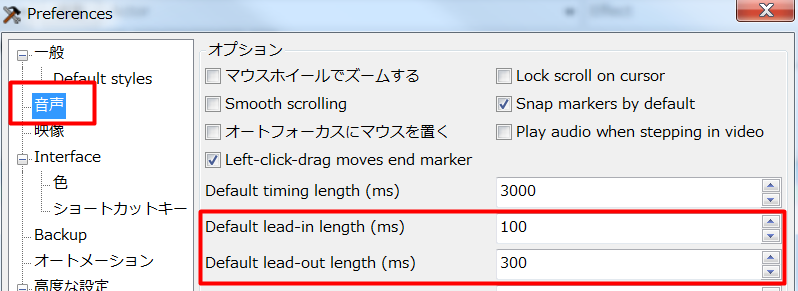](https://wiki.holoresorttls.org//uploads/images/gallery/2025-06/aYNkNeHK0nzB2Opf-u2slmvvd.png)
You can change the amount on the settings (Alt+O)
You can check “Snap markers by default” to easily manage blinking/overlapping.
#### Timing Post Processor
You can use the “Timing Post Processor” to automatically fix and clean out missed blinkings.
However, *****this does not work if you are working with a collab stream***** where multiple people are speaking.