Timing Guidelines
- Lead-ins and Lead-outs
- Connected Lines
- Keyframing
- Blinking and Line Splitting
- Multiple Speakers and Collabs
- Tips and Shortcuts
- Additional Timing References
Lead-ins and Lead-outs
What are lead-ins and lead-outs?
- These are the spaces in time between the text appearing on-screen and the audio becoming audible.
- Lead-ins are the time when the subtitle shows up before the talent speaks.
- Lead-outs are the time the subtitles disappear after the talent speaks.
- This is used to get the viewer to sync up the subtitles with the audio by compensating for the time it takes for the brain to process both sight and hearing.
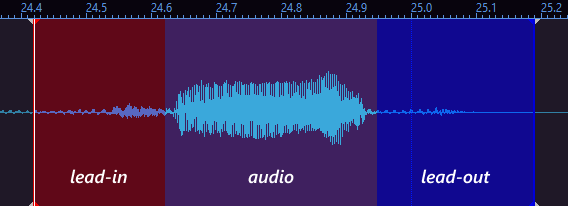
Minimum and recommended values
|
|
Minimum | Recommended |
|
Standard lead-in |
at least 150ms | 250-300ms |
| Standard lead-out | at least 300ms | 500-600ms |
Just because they’re the minimum, doesn’t mean it’s appropriate to stay at the minimum at all times. Some subtitled lines can look better if they have extended lead-ins and lead-outs when appropriate, so you are free to add time if they look better that way. If timing is very tight, you can experiment with lowering the lead-ins and lead-outs beyond the minimum, with a focus on lowering lead-out time first.
Connected Lines
If the next line of the same speaker is around or less than 500ms (including lead-ins and lead-outs), connect the lines together by snapping the current line to the next line.
This means the end of the current time is the start of the next one.
Some subbers and viewers are more sensitive to short lead-outs and blinking, and may prefer lines to be connected even if they’re more than 500ms apart. This may be the case for people with low reading speed. For example, Madekuji has a preferred lead-out of 500ms-600ms instead of the standard minimum 300ms.
You can use the key binds “C” and “V” to add lead-ins and lead-outs correspondingly.
You can change the amount it adds by going to View > Options > Audio > Default lead-in/out length (ms) in Aegisub.
Keyframing
What are keyframes?
- These are sudden and instantaneous transitions to a different scene. (e.g. Jump Cuts, Camera Switches)
- If you encounter one of these, the lead-out should be on the exact frame before the transition happens.
When there are already subtitles in a video:
- You should try to match the keyframes of the hardsubbed subtitles in the video to your subtitles.
- You can also try to mask the hardsub so you don’t have to match it but this requires editing software.
Blinking and Line Splitting
Blinking
Blinking, also known as “flashing” or “gaps”, is a moment when the timed subtitles disappear and reappear within a few milliseconds/frames. It creates a subtitle effect where subtitles appear to “blink” due to the quick succession of a subtitle, a blank space, then a subtitle, caused by a timing gap in-between subtitles. The gaps in blinking are usually a few milliseconds or frames missing.
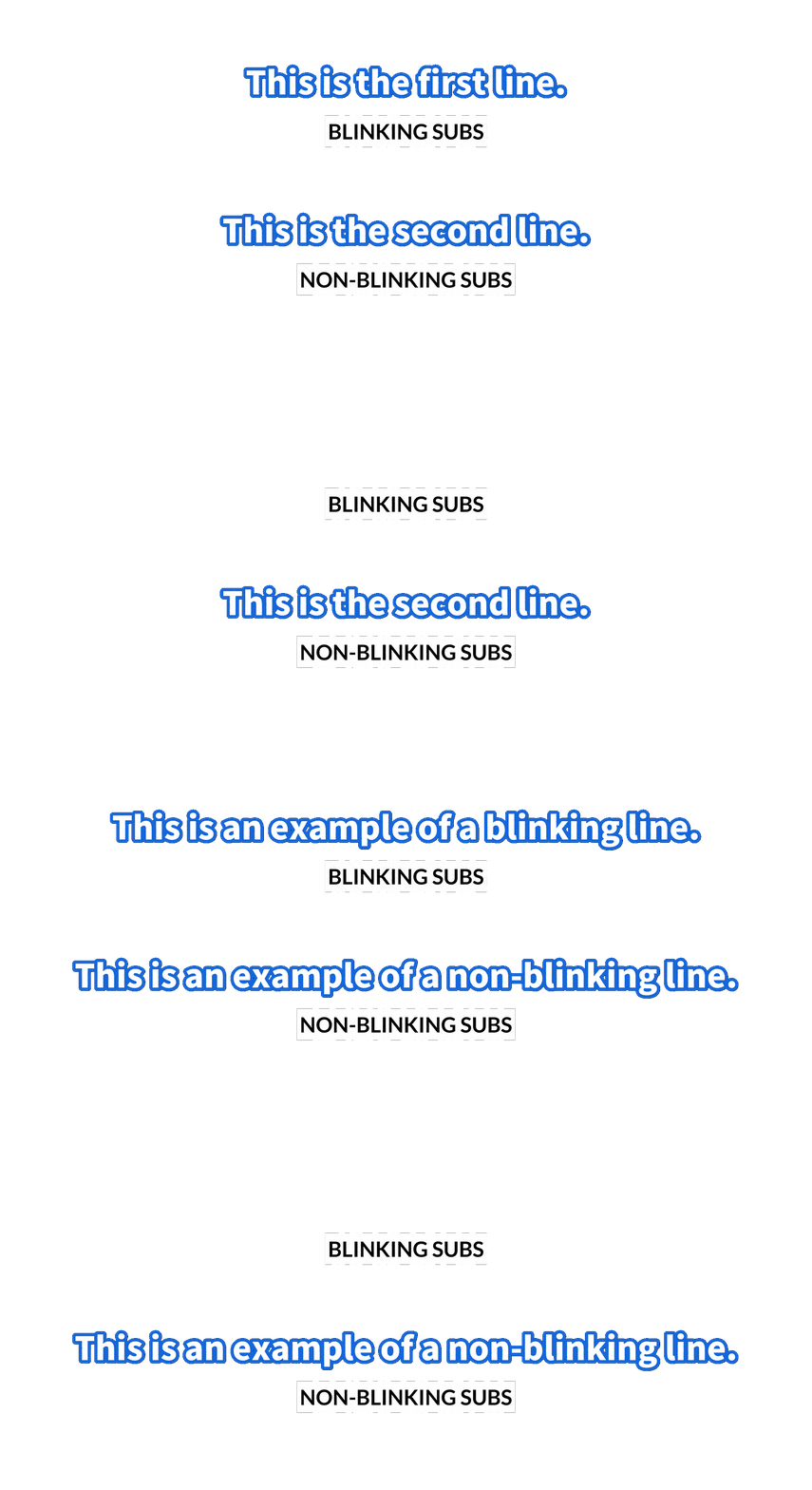
This is a rookie mistake for a lot of new subbers.
Blinking must be avoided at all costs. It causes reading strain and flashing effects, which may induce discomfort, especially to those with photosensitive epilepsy.
For HoloResort Translations subbers, your work will be sent back to you to edit if you submit an ASS file that contains blinking unless you can explain why the effect is necessary for the project you are working on.
You can enable “Snap markers” by checking View > Options > Audio > Snap markers by default in Aegisub.
This lets Aegisub snap audio markers to other markers whenever you click or drag them if they are close enough, reducing the chances of accidentally creating blinking effects.
Line Splitting
Avoid timing a single line for too long. If the line can be broken up into multiple sections, break it apart as such.
- This is also to be hand in hand with the ellipsis/em-dash rules from proofreading.
- This is purely up to your judgment. Do what feels right for you and others.
Multiple Speakers and Collabs
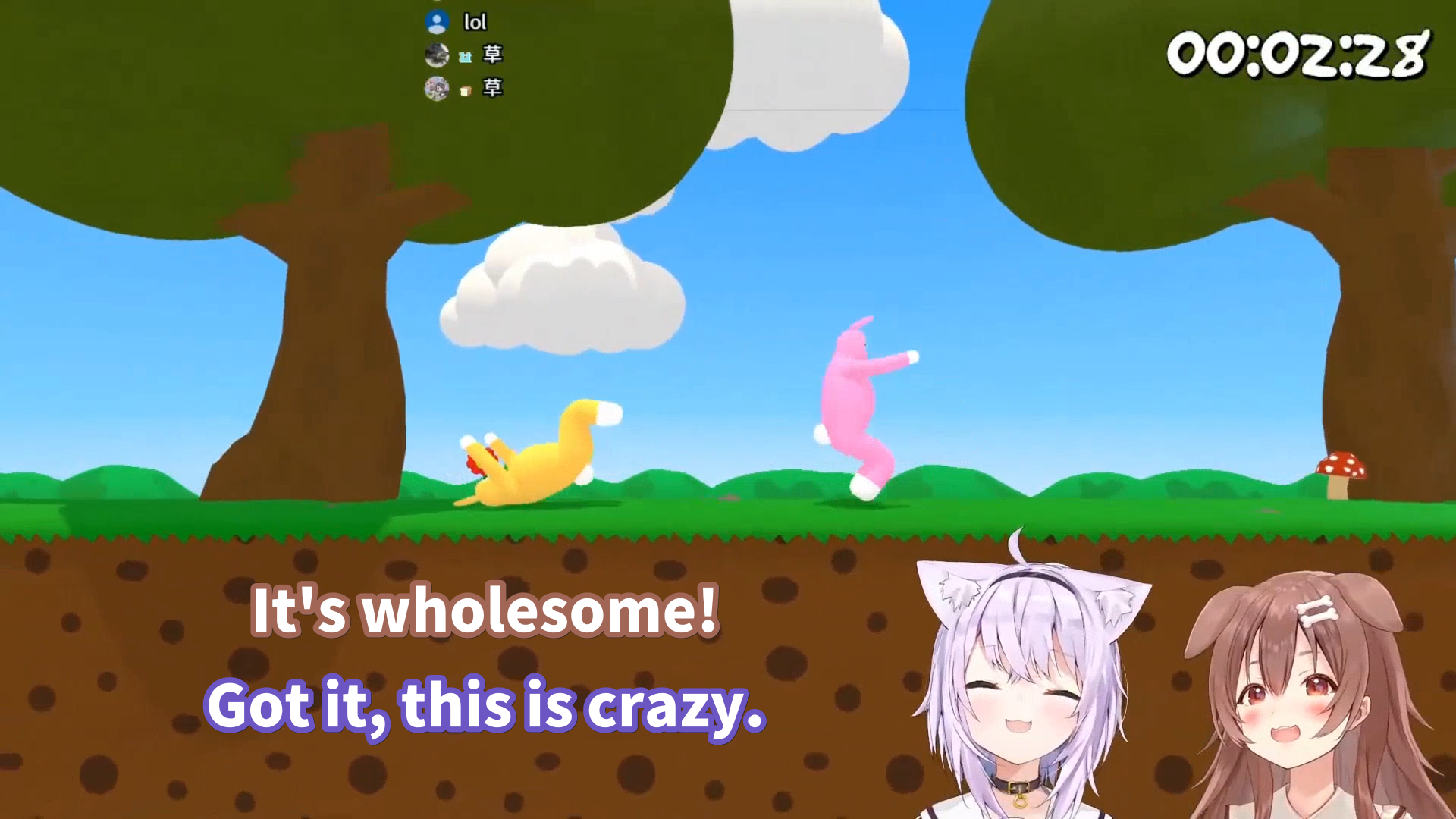
- Time them chronologically
- The gap between the two speakers shouldn’t be too far away from each other in terms of how many lines they are separated in aegisub.
- As much as possible, make sure that both lines appear and disappear at the same time.
- If one of the speakers ends at least 500ms earlier (including lead out), then you may cut the line’s timing there.
- No matter what, the lead-ins of both speakers should relatively stay the same and appear together.
Tips and Shortcuts
Keyboard Shortcuts
- A - Slide the audio bar to the Left.
- S - Plays the audio entirely.
- D - Plays the last 500ms of the audio.
- F - Slide the audio bar to the right.
- G/Enter - Commit the timing for the line
- Z - Go to the previous line
- X - Go to the next line
- C - Add a set amount of lead-in to the timing (default is 300ms)
- V - Add a set amount of lead-out to the timing (default is 300ms)
Changing Settings
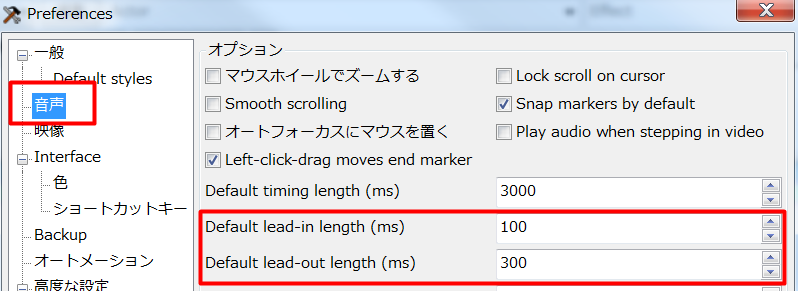
You can change the amount on the settings (Alt+O)
You can check “Snap markers by default” to easily manage blinking/overlapping.
Timing Post Processor
You can use the “Timing Post Processor” to automatically fix and clean out missed blinkings.
However, this does not work if you are working with a collab stream where multiple people are speaking.